MESOLANE
GUIDE
Checking...
SELLBUY

MESOLANE USER GUIDE

GUIDE

Search, compare, list, contact, and manage items.

01

GETTING STARTED

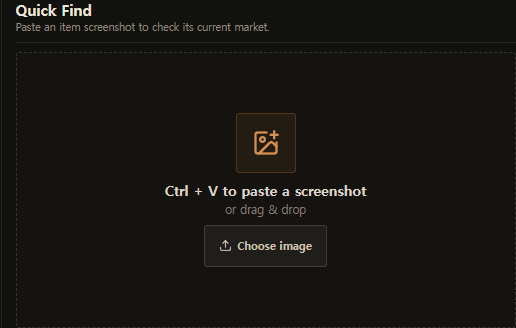
Buying and selling begin with an item; on pages without a main search, use the header search to jump to another one.

Current MESOLANE Home hero with Owl branding, value proposition, and item searchSearch items, compare live listings, and contact traders.
SEARCH
BUY
  1. Search
  2. Choose Item
  3. Compare Listings
  4. Contact
  5. Trade in game
SELL
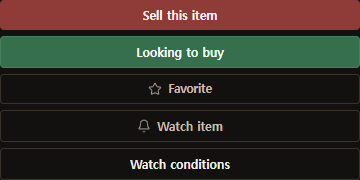
  1. Press SELL
  2. Choose Item
  3. Enter Listing Details
  4. Edit Your Item
  5. Create Listing
02

SEARCH & DISCOVER

Search by item name, revisit recent searches, or open a favorite.

1 Recent Searches & Favorites
Current search library showing Recent Searches and item-level Favorites
2 Search Results
Current search result showing item icon, name, type, job, level, and favorite star
  • Recent Searches keeps items you opened lately.
  • Favorites keeps item-level shortcuts, not individual listings.
  • Choose a result to open its Item Market.
03

BROWSE BY CATEGORY

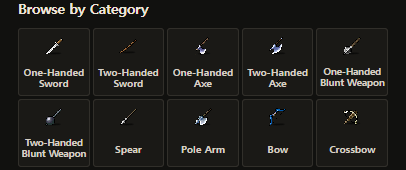
Browse by item type when you don't want to search by name.

Current Home Browse by Category grid for weapons, equipment, and other items
  • Choose a category to open the Market with that filter applied.
04

MARKET

See popular items and a quick snapshot of the live market.

Current Home Popular Items and Market Activity panels
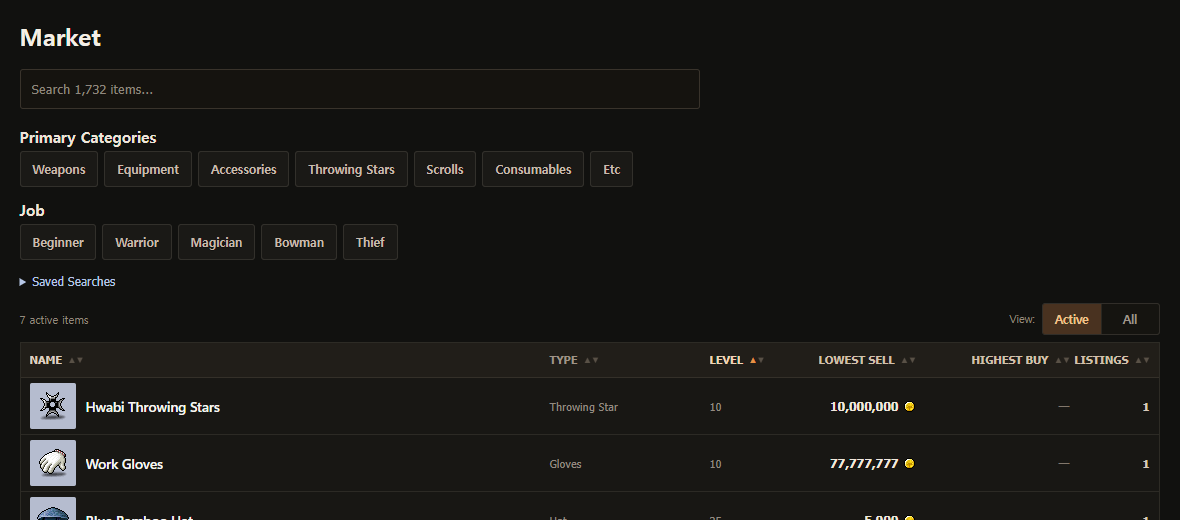
Current Market with search, category filters, job filters, view control, and item table
05

ITEM MARKET

Open an item to compare its current SELL and BUY listings in one place.

Current Item Market with Item window, market summary, listing filters, and live SELL and BUY listings
MARKET OVERVIEWITEM INFOFILTERS

Compare prices, stats, and trade methods without opening every listing. Shop Sell Price is the NPC value, not a player's listing price.

06

UNDERSTANDING LISTINGS

Read the side, exact item, price, amount, trader, and activity before contacting anyone.

Current Zombie Teddy Bear SELL listing showing price, total quantity, minimum purchase quantity, trader, and activity
QTY / MIN
Price
The asking price or buy offer.
Quantity
The total units available or wanted.
Minimum
The minimum quantity one trade must include.
Activity
Direct Trade shows creation or Bump activity; Stores show creation or Refresh Shop activity.
07

EQUIPMENT & ENHANCEMENT

Equipment keeps its fixed catalog information and editable trade values together in the Item window.

Current enhanced equipment listing with final stat differences, upgrade progress, listing note, price, and trader
STAT DIFFERENCELISTING NOTE
AVG
The normal catalog value used as a reference
Stat Difference
The current final value compared with Catalog AVG; positive differences are blue and negative differences are red
Successful Upgrades
The recorded number of successful upgrades; remaining slots are shown separately
Item Name
Unenhanced equipment uses the standard white item-name display; enhanced or scrolled equipment is orange
Requirements
REQ LEV, STR, DEX, INT, LUK, and FAM remain read-only
Jobs
The job strip reflects the item's actual eligible jobs, including all five jobs for all-job equipment
Listing Note
The seller's short trade comment, separate from equipment stats
CLEAN
Successful Upgrades is 0 and all catalog upgrade slots remain
08

SELLING

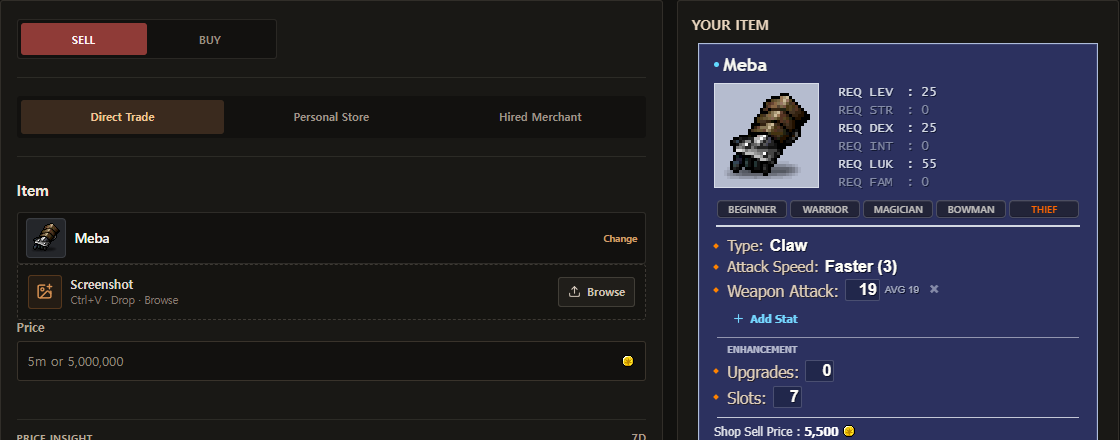
Enter the listing details, then edit equipment directly in the Your Item window.

Create SELL form with listing details and the direct-edit Your Item window
  • Enter the final value you want to list.
  • Catalog AVG is a reference for the item's typical catalog value.
  • For stackable items, set the quantity and minimum purchase quantity for each item; Min 0 means no minimum restriction.
  • Non-equipment items continue to use the standard Preview.
09

DETAILED STAT ENTRY

Enter the item's current final stats and enhancement counts inside the Item window.

Direct-edit Item window with final stats, catalog references, successful upgrades, and remaining enhancements
Final Value
Enter the current value exactly as shown on the item
Catalog AVG
The item's typical catalog value, used only as a reference
Add Stat
Adds an optional stat supported by that item category
Enhancement
Enter Successful Upgrades and Remaining Enhancements as shown
Automatic Difference
MESOLANE compares each final value with Catalog AVG automatically
  • Critical Rate is available for Gloves and Critical Damage for Earrings; unsupported critical stats do not appear
  • CLEAN requires zero successful upgrades and every catalog upgrade slot still remaining
10

TRADE METHODS

Choose how another player will find the item.

Current Direct Trade listing with item details, trader identity, and Contact Seller action
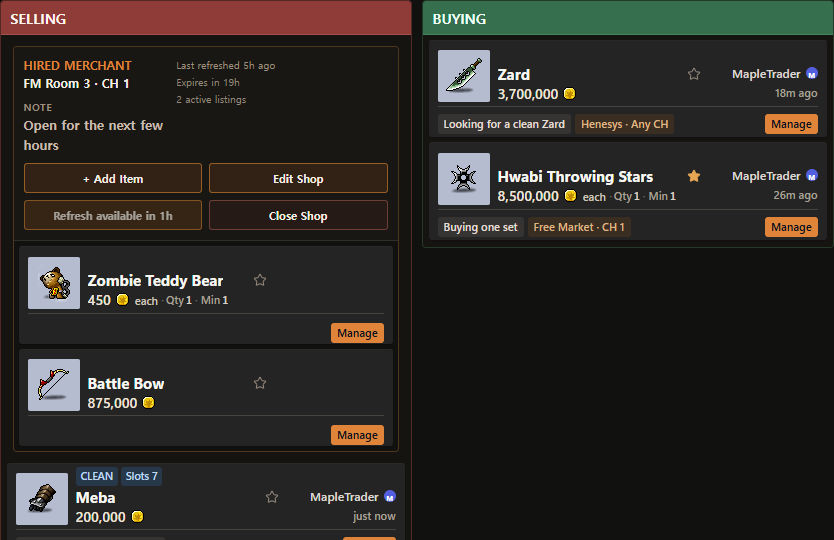
Current Personal Store listing showing the trade badge, store location, channel, and trader
STORE LOCATION
Current Hired Merchant Store Bundle with shared location, three child previews, and plus two more control
STORE LOCATION
Direct Trade
Contact the trader and meet in game.
Personal Store
List an item from your open Personal Store and show buyers where to find it.
Hired Merchant
List items from your Hired Merchant and show its Free Market location.
Store Bundle
Groups items from the same store; +N more shows the rest.
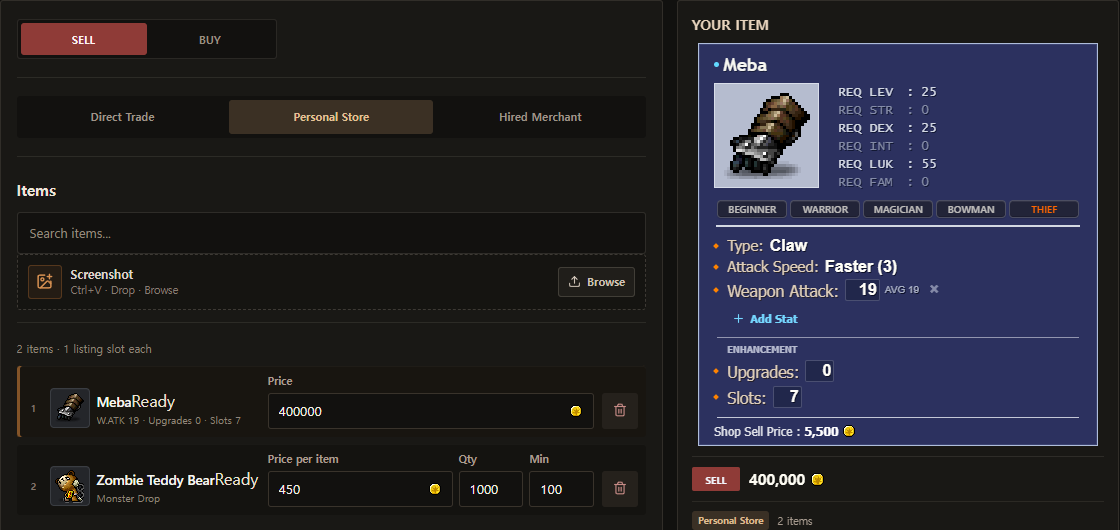
Create Store form with a selected equipment row, a stackable row, and the active direct-edit item window
  • Select an item row to edit it in the active item window
  • Equipment rows show Price only; stackable rows always show Price per item, Qty, and Min, even when another row is selected
11

BUY LISTINGS

Set the stats you want directly in the Desired Item window, then add meeting and contact information.

Create BUY form with offer details and the direct-edit Desired Item window
  1. Press BUY
  2. Choose Item
  3. Set Offer
  4. Edit Desired Item
  5. Choose Meeting
  6. Confirm Discord
  7. Add Note
  8. Create Buy Listing
  • Enter only the conditions you care about and leave the rest as Any
  • Catalog averages are references and do not become desired conditions unless you enter them
  • Add Desired Stat adds another supported condition; blank enhancement fields also mean Any
12

FILTERING

Narrow an Item Market to listings that fit what you need.

Current Item Market filter panel for price, attack, enhancement, and advanced stats
PRICEATTACKENHANCEMENT
Current Item Market controls for showing active listings and choosing the listing order
Price
Set your budget.
Attack
Find the attack values you want.
Enhancement
Search by upgrade count or remaining slots.
Advanced Stats
Use more stat filters when you need something specific.
13

CONTACT

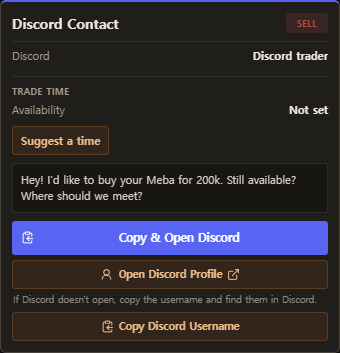
Open Contact Seller or Contact Buyer when you're ready to trade.

Current Contact Seller panel with in-game name, Discord identity, direct Discord message action, trade message, and copy actions
DISCORD DMCOPY
  • Check the trader's In-Game Name and Discord.
  • Message on Discord opens the direct contact path; copy actions keep the prepared details ready.
14

FAVORITES

Star an item to keep it close while its listings change.

Current Item Detail Favorite controls showing outline Favorite and filled Favorited states
INACTIVEACTIVE
  • An outline star is inactive; a filled gold star is active.
  • Favorites belong to items, not individual listings.
15

PROFILE / IGN / LISTING SLOTS

Your Profile keeps your public identity and listing work together.

Current Profile with Discord identity, Listing Slots, grouped Store information, Edit Shop controls, and complete active SELL and BUY listings
IGNLISTING SLOTS
Current owner Profile with one NEEDS REFRESH Store, grouped common information, Edit Shop, Add Item, Refresh Shop, and Close Shop controls
IGN
Your MapleStory in-game name used for the trade.
Listing Slots
Available spaces for active listings, up to 30.
Store Limits
Keep one Personal Store and one Hired Merchant open at the same time; each type is limited to one open Store
Add Item
Add more items to the same Store without resetting its expiration or refresh cooldown; each item uses one Listing Slot
Shop Refresh
Confirm every active item in the Store for another 24 hours; Store items do not use individual Bump
Needs Refresh
A stale Store still counts as the existing Store of that type; prepare, edit, or add items while stale, then use Refresh Shop to return them to the public market
Close Shop
Close all active or stale items in the Store while keeping completed history

Listing Slots are free. They are not a paid currency.

16

MANAGING LISTINGS

Use Manage on a listing you own.

Current owned listing with its Manage menu, edit actions, Bump cooldown, completion, and deletion
EDITBUMPCOMPLETEDELETE
  • Edit the price, quantity, comment, or trade details after posting.
  • Direct Trade Bump moves that listing back to the top after the cooldown; Store items use Refresh Shop.
  • Mark as Completed when the trade is finished.
  • Delete removes an active listing.

Completing or removing an active listing releases its Listing Slot.

17

COMPLETED

Completed SELL and BUY listings stay separate.

Current Completed Listings split into separate SELL and BUY columns
  • Completed listings are user-marked history, not verified trade records.
18

REPORTING A LISTING

Report a problem with someone else's active listing.

Current Report Listing dialog with reasons, optional details, and disabled submit action
  • Choose a reason and add details if needed.
  • Reports do not automatically remove a listing.
19

QUICK REFERENCE

The words you will use most often.

SELL
Someone is offering an item.
BUY
Someone wants an item.
CLEAN
No upgrade slots have been consumed.
AVG
The normal catalog value.
IGN
A MapleStory in-game name.
BUMP
Move a listing back to the top.
SLOT
One active listing space.
MIN
The smallest stackable amount per trade.

Discord Community

Join the MESOLANE Discord

Message other players, ask marketplace questions, coordinate trades more easily, and follow community updates.

Discord is optional and is not required to use MESOLANE.

Join Discord